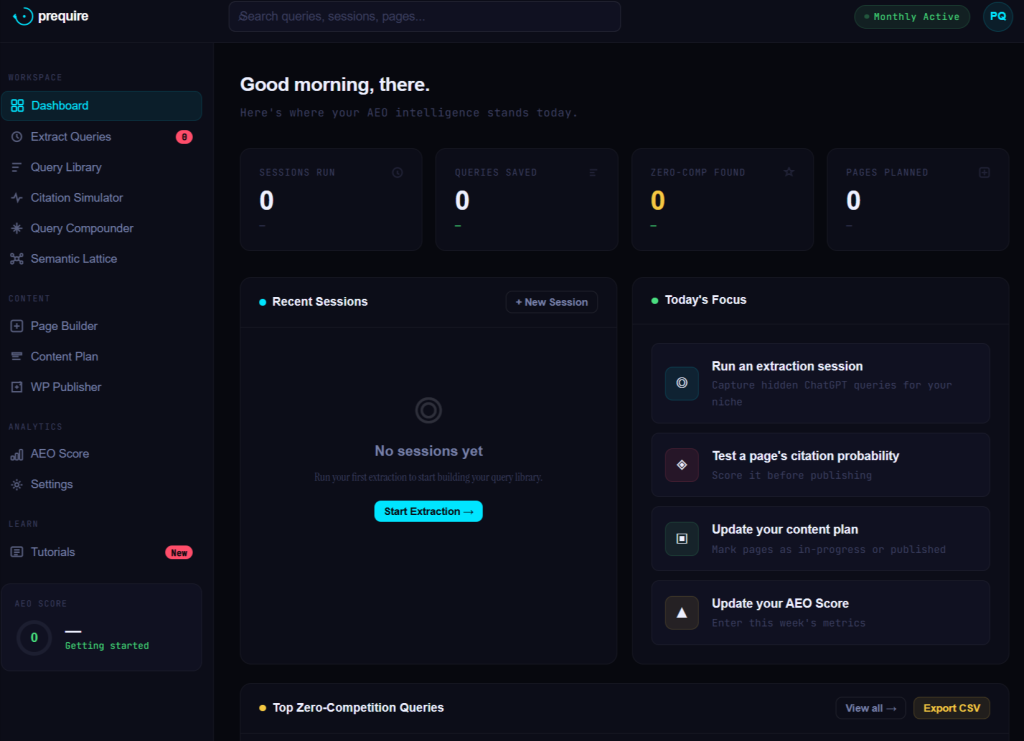
The Prequire dashboard shows your Sessions Run, Queries Saved, Zero-Comp Found, and Pages Planned stats, plus a Today's Focus panel with your 4 weekly priority actions.
How To Use the Prequire Dashboard
Your AEO mission control — track sessions, zero-comp queries, and citation momentum in one view.
The Prequire dashboard is your AEO mission control. At a glance you see where your citation intelligence stands, what needs attention today, and how your momentum is building week over week.
Step-by-step guide
1. Check your 4 stat cards at the top Sessions Run, Queries Saved, Zero-Comp Found, and Pages Planned are your north star numbers. If all are at zero — run your first extraction now.
2. Review Recent Sessions This panel shows your last extraction sessions. Click any session to review the queries you surfaced. If it says “No sessions yet,” click Start Extraction to begin.
3. Work through Today’s Focus The right panel gives you 4 prioritized action items: Run an extraction, Test a page, Update your content plan, Update your AEO Score. Work through them in order every week.
4. Check Top Zero-Competition Queries The bottom panel surfaces your best opportunities — queries where AI engines have almost no one to cite yet. These are your immediate page-building targets.
5. Monitor your AEO Score Shown in the bottom-left sidebar. Starts at 0. Climbs as you publish citation-ready pages. Your goal is to move it consistently week over week.
? Pro Tip: Check the dashboard every Monday morning. The Today’s Focus panel resets based on what you haven’t done yet — use it as your weekly AEO checklist.